

Hi Everyone,
Welcome to both parts 1 and 2 of this Picmonkey tutorial. Today, I added a floor plan which is almost the same as the one I did a week ago. Then, I added all of the images I used in the floor plan for you to practice with.
Finally, there is a 14-minute video that required several hours of prep work so I could keep it moving.
What would really help, I think, is for you to get a Picmonkey account and then, when you’re ready, try to make the same floor plan, along with me.
If you’re here for the first time, please start from the top of the page. Otherwise, you can click the link below to skip to part 2 and watch the Picmonkey video tutorial.
Part 2 Begins Here
Hi Everyone,
Many of you requested this beginner Picmonkey tutorial after Sunday’s post about room planners.
This is 100% new content from a post that originated in 2019. The entire interface is unrecognizable from the way it was.
The reason I like Picmonkey so much is that it’s not difficult to learn, and the options are endless since one can use their own images to create moodboards, floor plans, logos, cards, marketing materials, and much more!
A decade ago, I tried Canva; however, Canva is more of a template-based platform.
So if you’d like to make flyers, business cards or social media posts primarily, it’s great for that. Picmonkey offers far greater versatility with photo editing, which is what you need to make one-of-a-kind floor plans, perspective images and moodboards.
This will be a pictorial and written-out Picmonkey tutorial.
However, I would like to follow up with a video, probably tomorrow night.
The first thing you need to do is get the Picmonkey program, and there is a trial version. I pay $130 a year for the pro version. I don’t know what’s on the other versions, but it more than pays for itself!
While the majority of us know our way around the basics of computer technology, there are still many of you who are a good 25 years behind.
This next part is very important, so please read carefully.
Please understand.
In the late 90s through the turn-of-the-century (that’s the turn of the 20th century, in case that’s not clear lol), I was a technophobe par excellence! A Luddite, my wasband called me.
Computers were completely intimidating. I didn’t want anything to do with them.
However, in 2002, I received an email from a client. (How dare she!) And from then on, things slowly began to change, and then began to change massively in 2012 when I started this website/blog.
Soooo, please take a deep breath.
Even if you tried before to learn Picmonkey and gave up in abject frustration, it’s probably because you were:
- tense
- rushed
- got stuck at a crucial junction
- tried to watch and learn from their tutorial.
Out of curiosity, I watched one of their tutorials on video, and I realized the problem. I was confused very early on, and I can do Picmonkey in my sleep with one arm tied behind my back.
To begin the PicmonkeyTutorial.
I will be breaking this down as tightly as possible; however, your device might be a bit different.
If so, please ask Google or use AI for answers. For example, how do I make a screenshot on a PC? Or how do I crop an image on a PC?
These simple quearies will have the answers that you seek.
1. Please get set up on Picmonkey. I have the pro version, but you can try the free trial version. There might also be a lower-cost non-profit option.
2. After that, you will need to be able to create images you can upload to Picmonkey.
This is a basic skill and essential because if you wish to make a moodboard, you will need to use your own images that are not available on Picmonkey.
The most common way to save an image is to right-click it and save it as a JPG or PNG.(A JPG or JPEG is fine, but a PNG will give a higher resolution, so I usually use that format.)
However, most images you will find on the internet are locked and saved in a format that can’t be uploaded to Picmonkey.
Therefore, you will need to take a screenshot. Or, if the image is too large, you can save the image in the locked form and then take a screenshot of the entire image that will now fit on your screen.
If you don’t know how, please Google it.
On a MacBook, you press Command+Shift+3 simultaneously, and you will create a screenshot of your entire screen, just like you see below.

Then, crop your image before adding it to a folder, which is what I usually do. You can also crop images in Picmonkey. On a MacBook near the top of your screenshot, you will see a tab called MARKUP. Click that and drag your cursor to the part you’d like to crop, and hit the crop icon directly underneath where it says MARKUP.
As I recall, cropping on a PC is very similar, but it’s been over 11 years since I used one.
If you mess up, try command + z (MacBook), which will undo your crop, or at the top of your screen, click the edit tab and click “undo crop.” If you go to the FILE tab, there is also an option to restore to the previous save or other saves. This is also the place to create a duplicate image. I often do this if I want the same image in multiple folders.
No worries if you just went south on me. I am a visual learner, so written instructions make my eyes glaze over. I get it! We will definitely do a video!
Create a folder (right-click on your desktop and select New Folder in the pop-up menu) and name it by clicking underneath the folder until it’s highlighted.
Then type in whatever you want to call it. I named my folder PICMONKEY. Clever, huh? ;]
Drag your image into the folder.
That’s all you need to do. There are some editing options, like resizing your image. Let’s say you’re using this image as a tiny vase on your moodboard, but your image is 2500 x 2500 pixels. You will want to reduce the size of your image considerably; otherwise, your image will look distorted due to the immense amount of compression.
Sometimes, I can’t find the perfect image, but images can be manipulated to some extent. That is more advanced.
The bulk of the boards I make are either floor plans/elevations, or perspective virtual spaces. (mood boards)
Sometimes, I use a photo of a room that needs a makeover. That is also more advanced.
However, once you’ve mastered uploading photos to your desktop folder, you’re already in great shape.
If this is completely foreign or new to you, please first practice uploading images through a screenshot, cropping them, and putting them in a folder on your desktop that you have named.
Once you’re good with that skill, it’s time to open picmonkey.
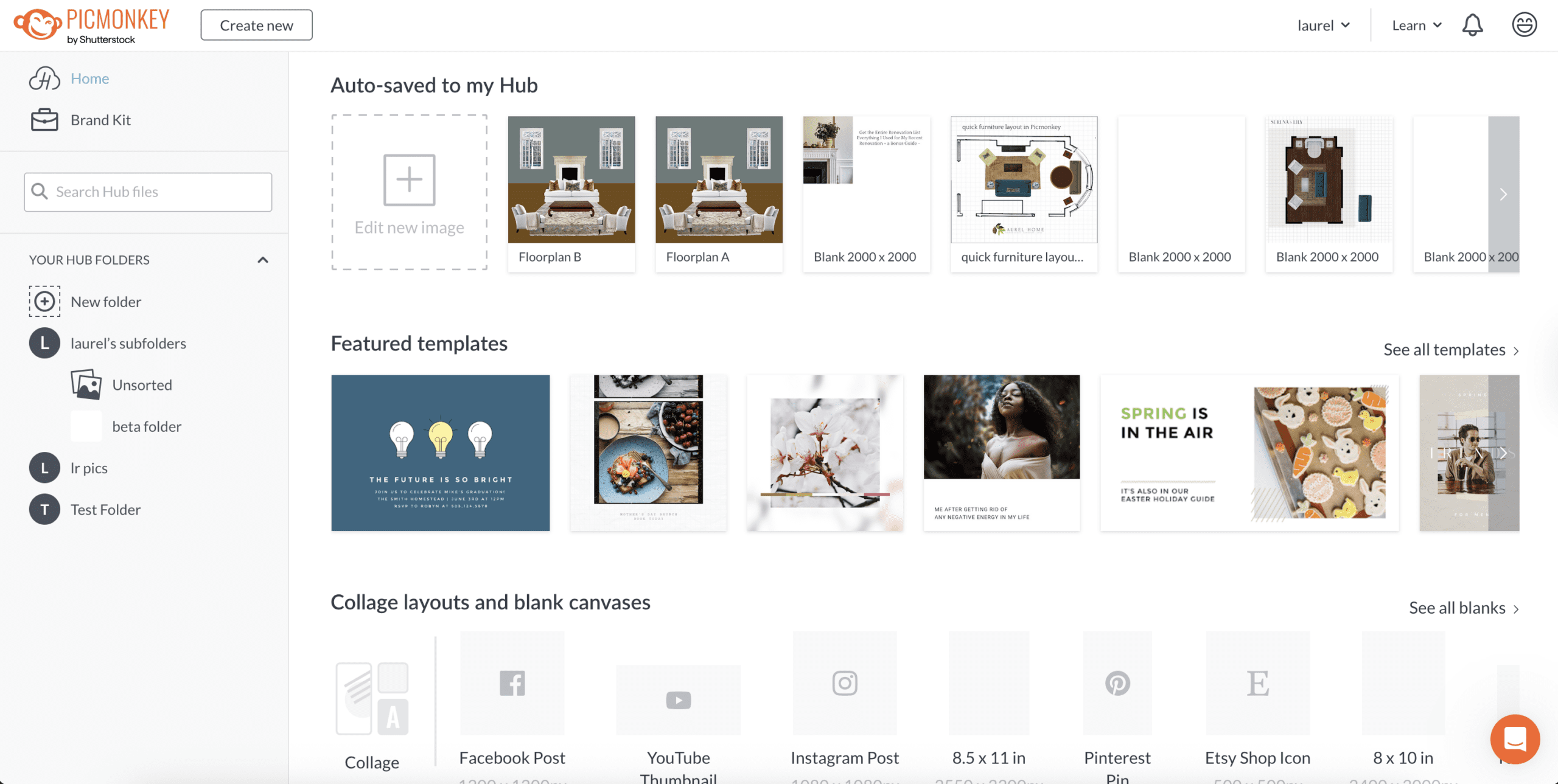
I don’t use the hub folders. However, every board or image saved gets saved to the hub. (See auto-save at the top of my screen.) For instance, I take my graph paper out of the hub file as well as my Laurel Home logo. There is a search box on the left that says search hub files. I type in graph, and the graph image pops up.
To make a canvas or a board, which is the same thing. click on create new.
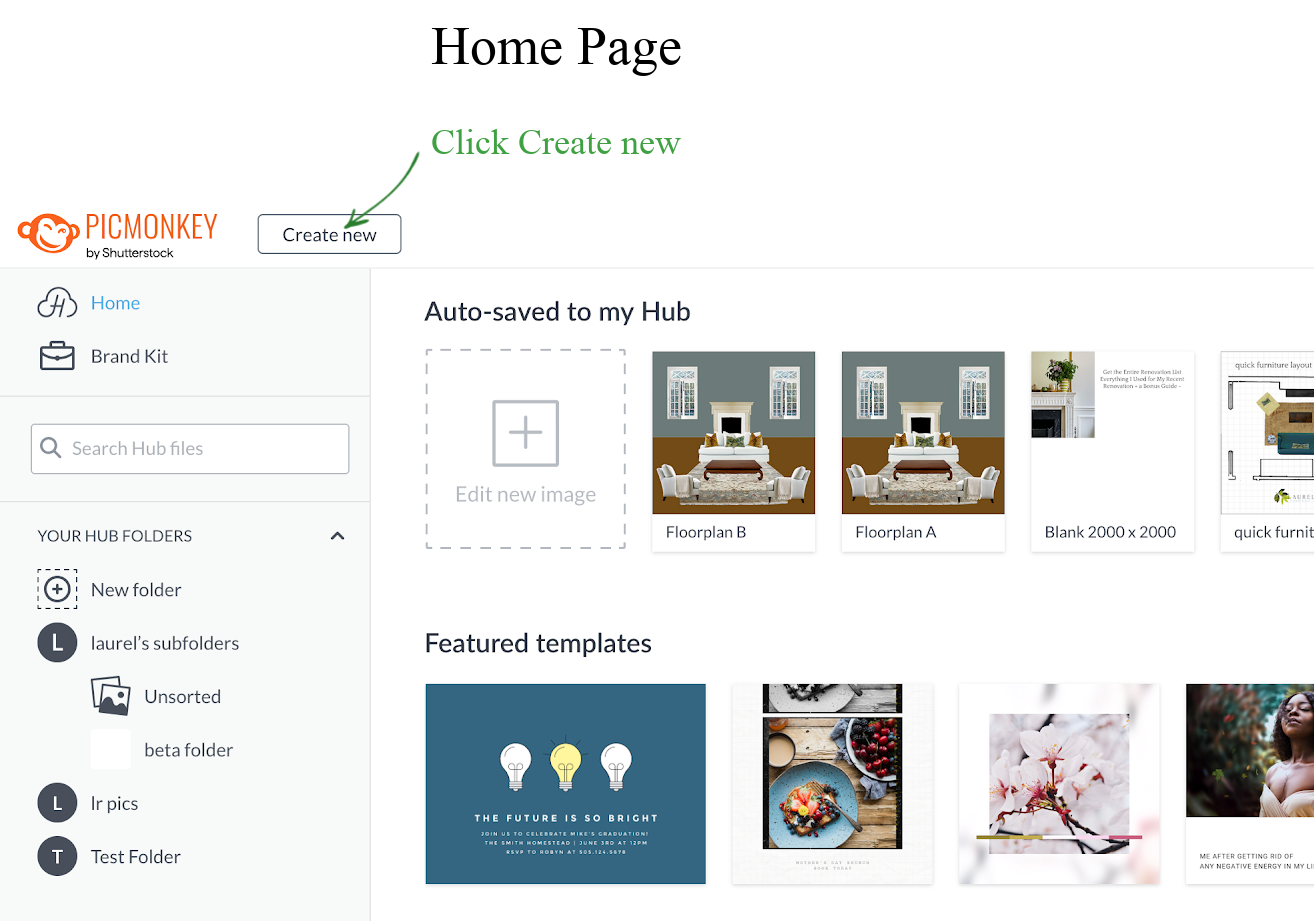
The menu below will open up.
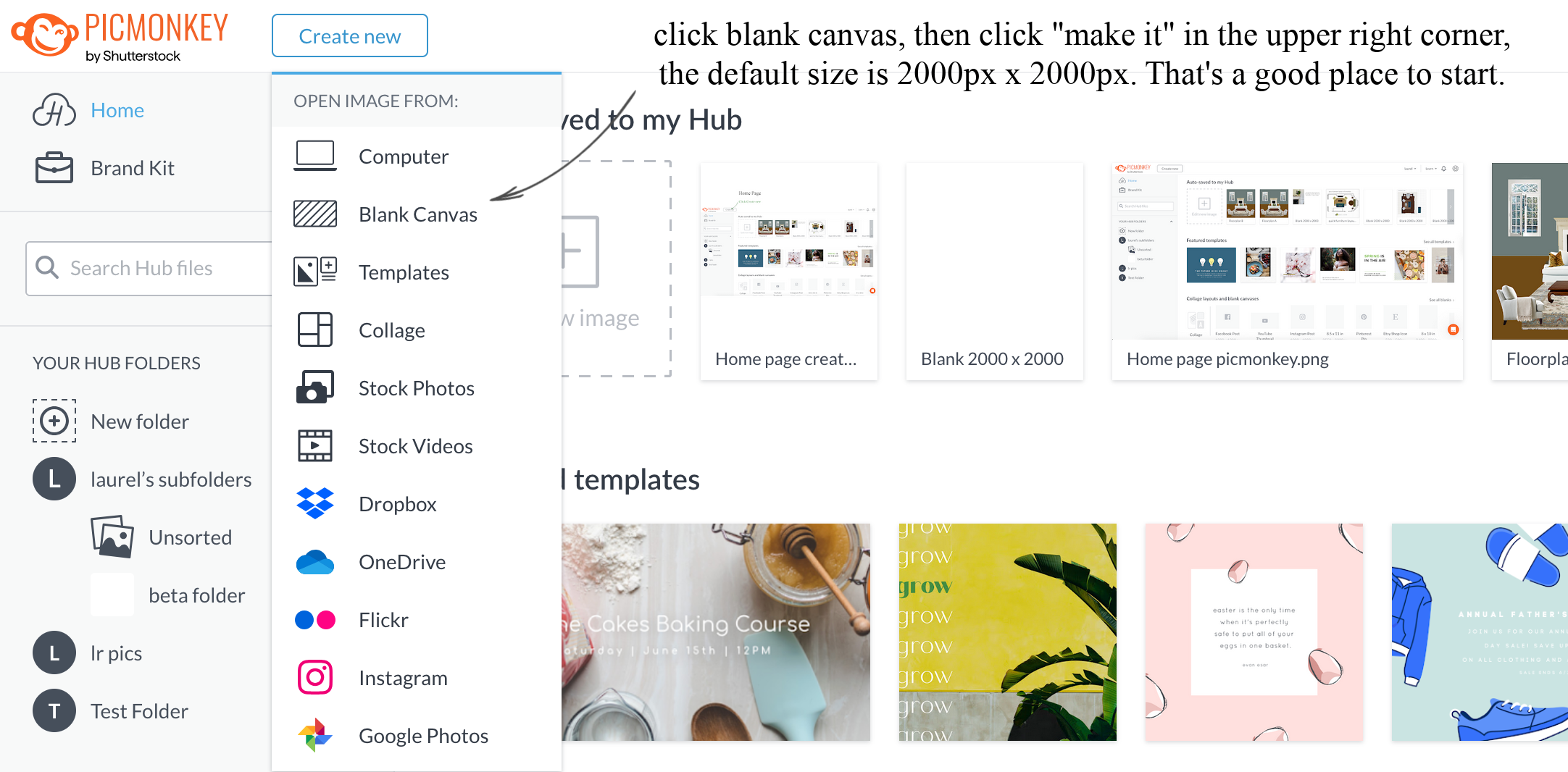
Click the blank canvas and then click make it in the upper right corner. Sorry, I cropped out the make it, but you’ll see it on your screen.
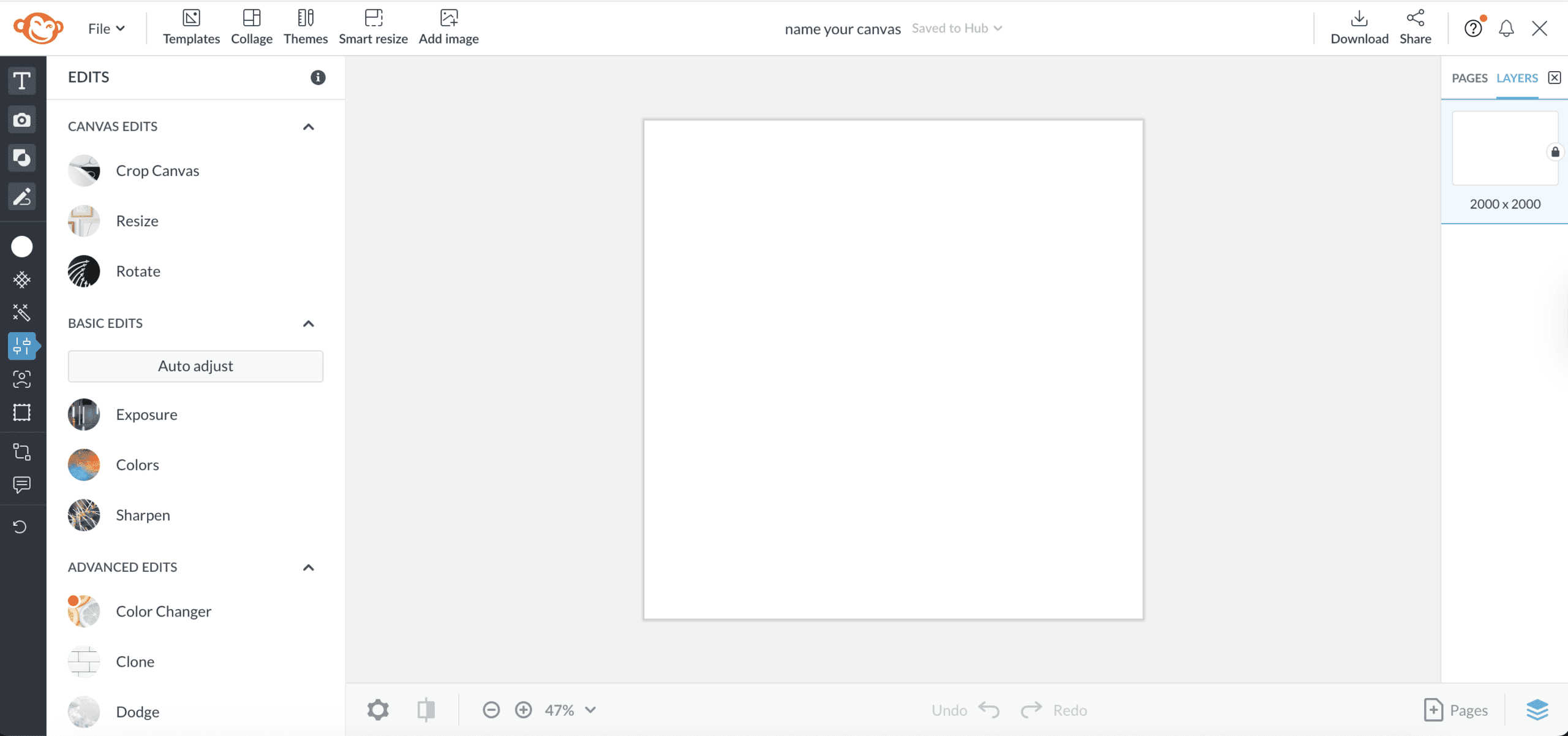
Where it says 2000 x 2000, change that to whatever you’d like to name your canvas. Mine says, “Name your canvas.”
Looking at your left sidebar, you’ll see an intimidating black bar and then Edits on the left. Both are for editing.
Hover over the black bar, and all of those symbols will open up. If you’d like it to stick, you can click the little carrot > in a gray dot near the top.
The image below explains which of these I use frequently for moodboards and floor plans. So, please read what I wrote on the board.
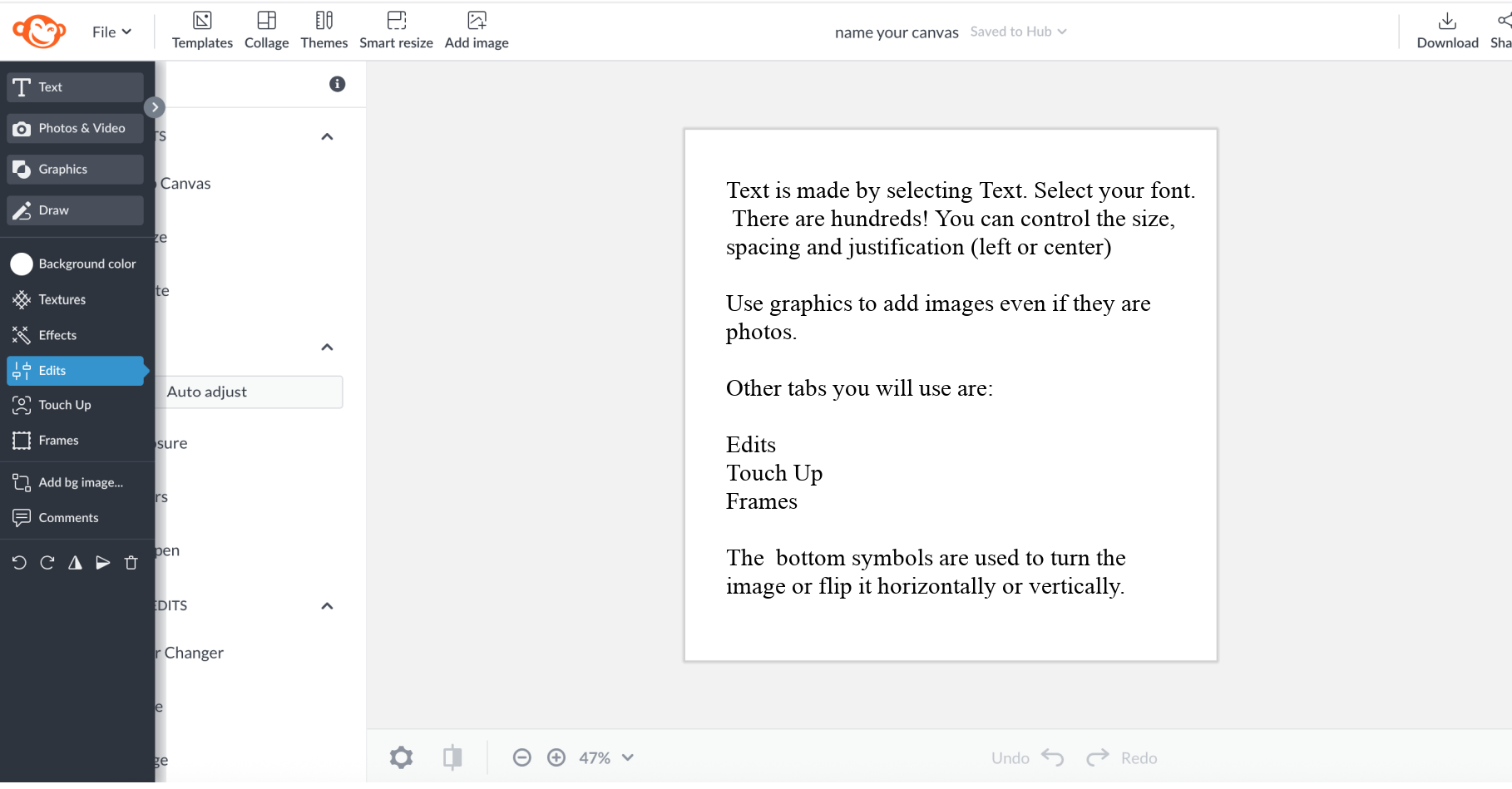
The frames are optional and used to add a border around the entire board.
This is the sort of thing you’ll need to play with. I usually don’t use the inner border, but it can be used to make the margin around your graphics wider if they’re too close to the edges of the board. I usually make my outer border 3 pixels. It shows up better on the blog than in Picmonkey.
If you click edits or stop hovering, you’ll see the white menu again.
I use exposure to brighten or darken images and colors, to enhance or change colors, and the sharpen option. I also use the Clone option, which can also be found under the Touch Up tab, which will appear once a graphic is added to your board.
We’re going to end soon because I don’t want you to be overwhelmed.
Please remember that I did not learn all of this overnight. No, it won’t take you months, but maybe a week or two to get the hang of basic functions.
Let’s add an image, but we’ll call it a graphic because I only use the graphic.
So please click graphics, then click add your own graphic, and select computer.
Open up your folder on your desktop, if it is not already open. Picmonkey will remember the last folder you used.
You can also do a search for your image; however, the easiest way to retrieve an image is to have it handy in a folder on your desktop.
Below is our image we’re going to edit in Picmonkey.
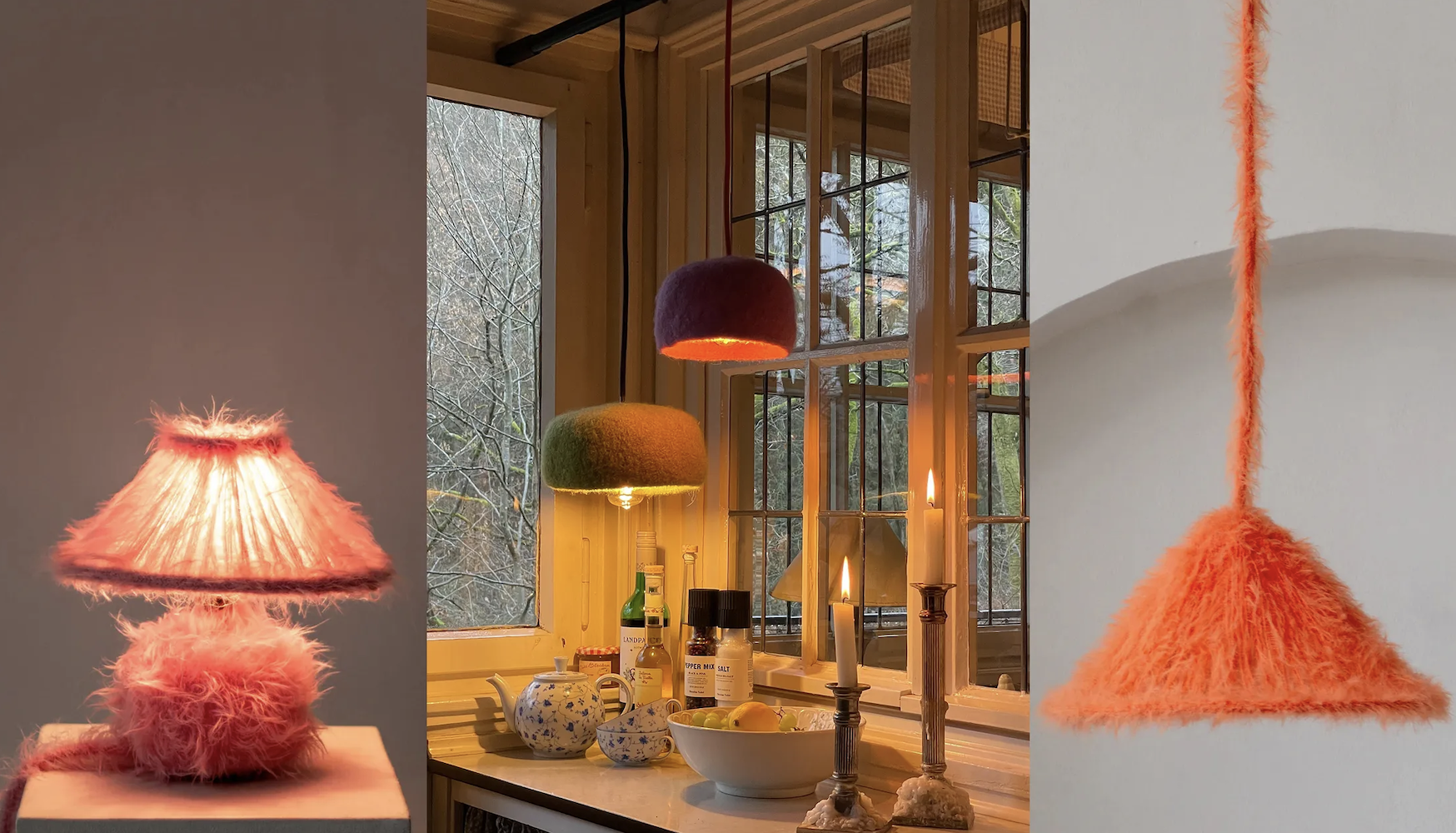
What on earth is that, Laurel? Is that some kind of fungus growing on the lamp?
These are “sweater lamps.”
Yes, they are a thing.
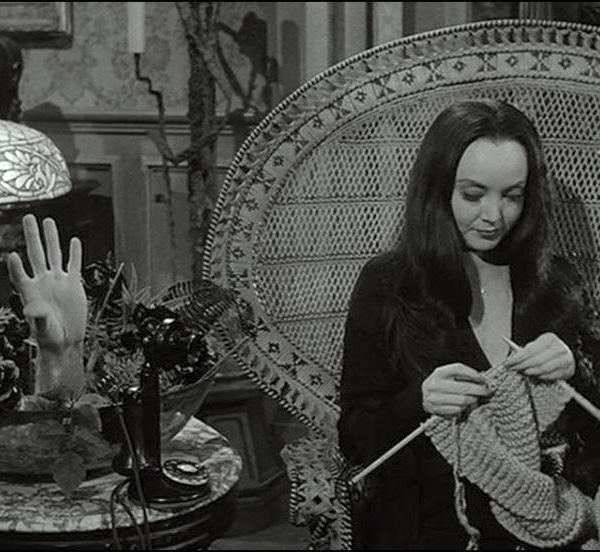
No, silly, not that “thing.” haha
More like Cousin Itt having a bad hair day!
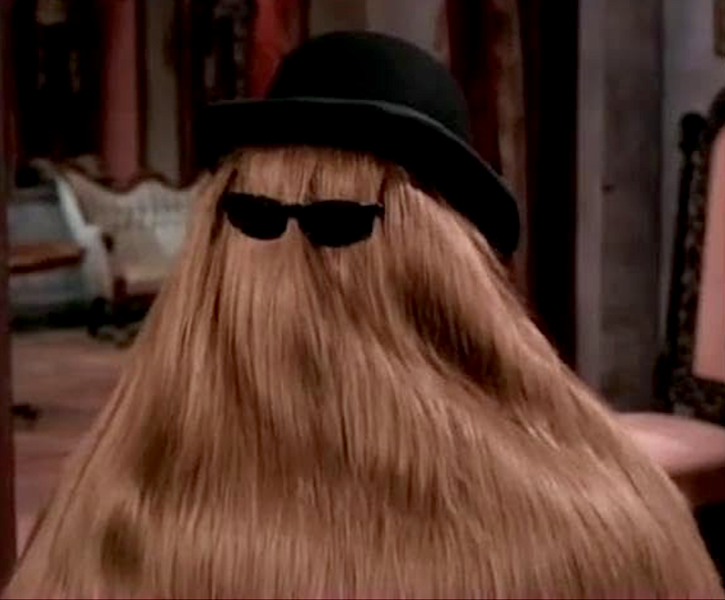
Oh, Laurel, how could you??? ;]
Hey, you said they look like a fungus! ;]
I found them on Architectural Digest— yesterday, before I began working on this post.
Nothing personal to whoever created these fuzzy-wuzzy lampshades, but, if their goal is to catch dust, they’re perfect! :/
Anyway, this image will serve as a good example to work with for our Picmonkey tutorial.
I want to add this image to the board and crop out the lamp. Then, we will remove the background behind the lamp.
Once added to the board (please scroll back up to see the instructions), click the image, which will put a blue frame around it. This is how you edit individual images.
All of my boards are made up of dozens, sometimes hundreds, of separate images!
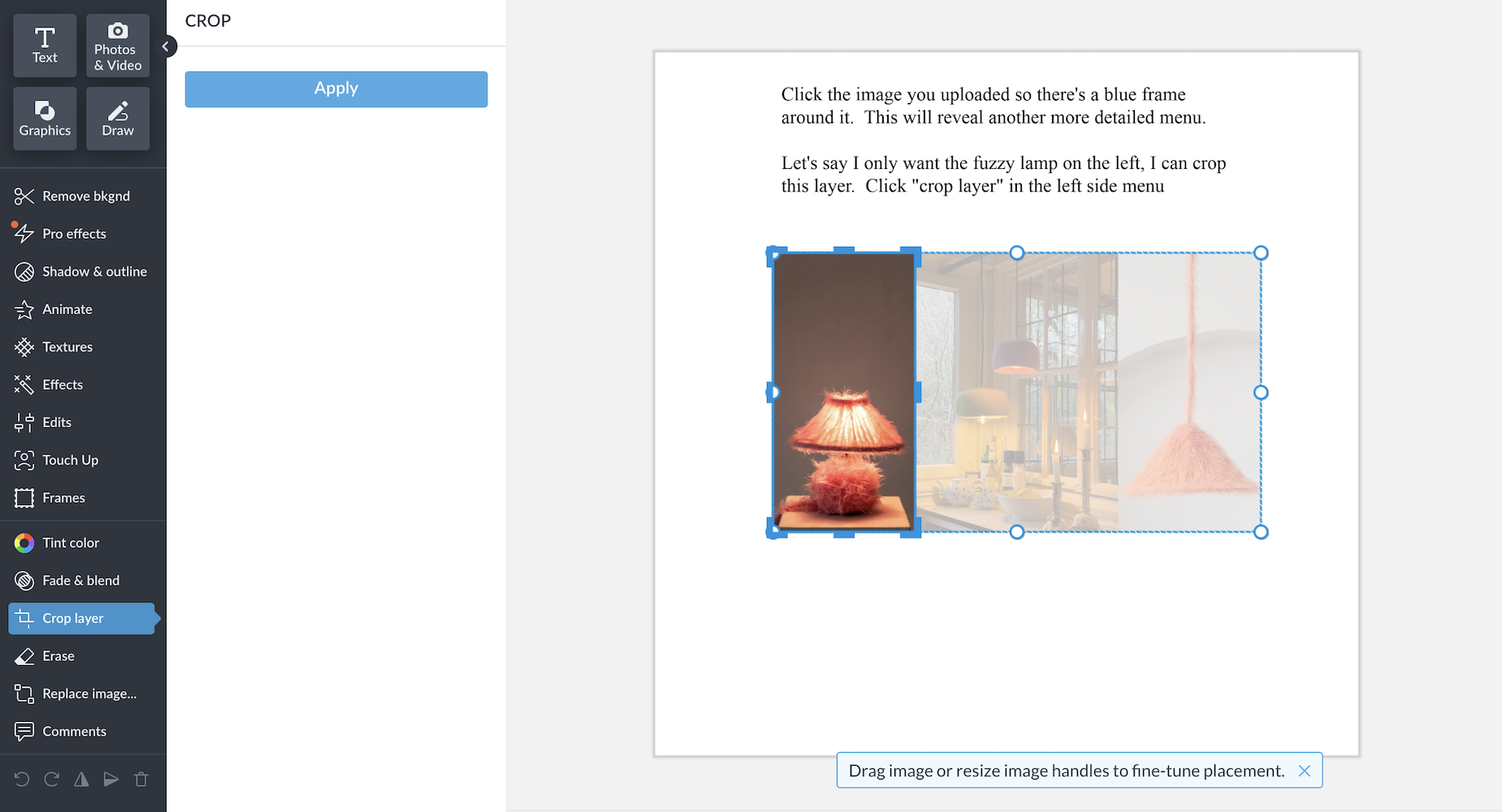
Now you will see another, more detailed menu on the left. With the blue frame, you can adjust the size by pulling from the corners with your mouse. You can also make it wider or taller by clicking on the sides, top, or bottom.
To crop out the lamp: (above)
Click the crop layer, and you’ll see some blue handles appear. Push those to crop as desired and click “apply” in the blue box.
To remove the background, click the scissor icon.
Let’s do that.
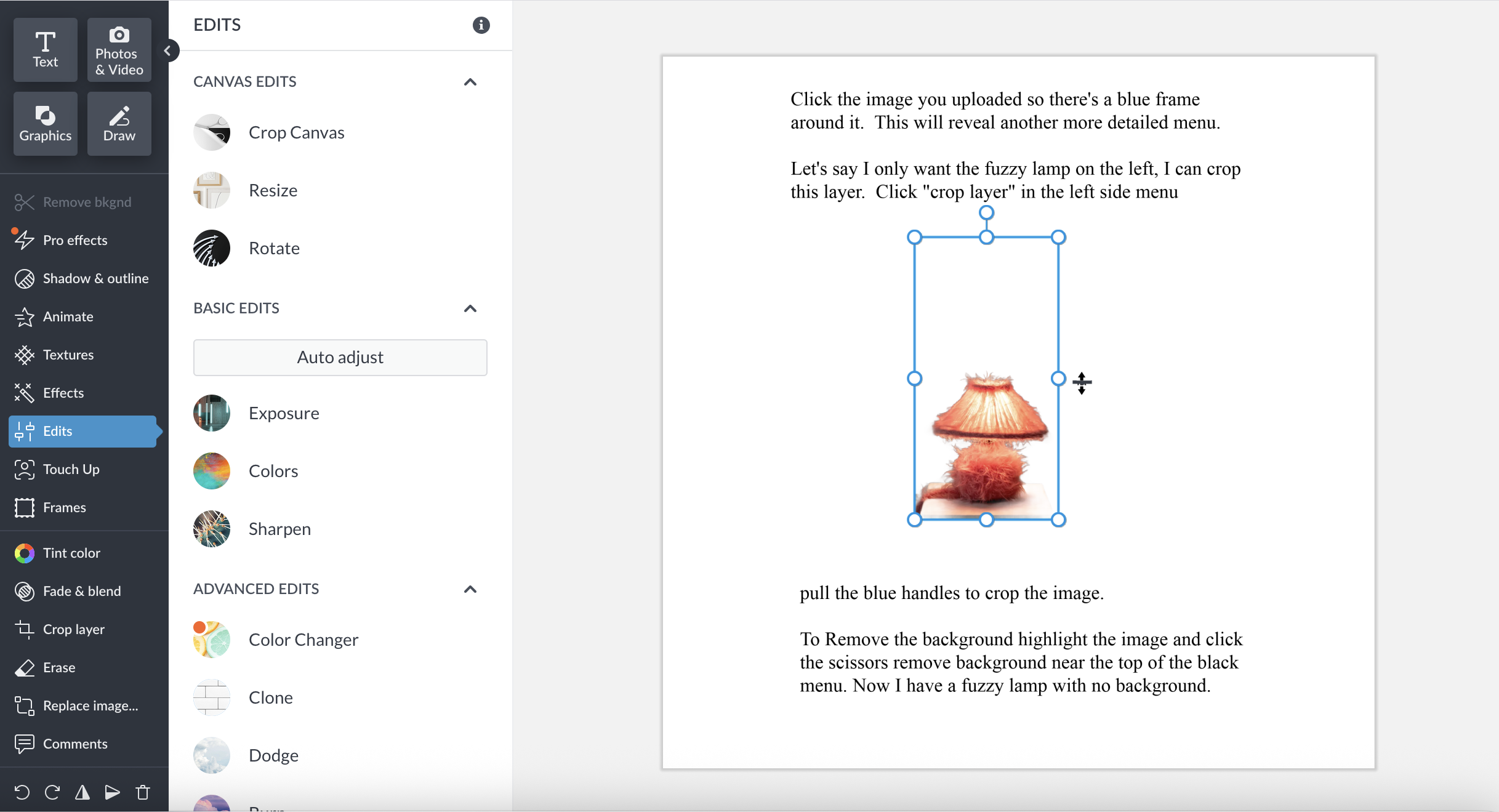
Use erase to erase the fungus fuzz.
Other tabs I use are:
- Touch Up
- Fade & Blend, and then on the right, exposure, colors, sharpen, and clone.
- I also use the graphics tab of inherent graphics on picmonkey called BASIC when you click on graphics.
Okay, I am going to stop here for now.
Please ask questions, and I will address them.
Those of you who have Picmonkey and are struggling, please tell me where you’re getting stuck. I find that sometimes when I’m learning something, I’ll hit a roadblock when one step is missing or isn’t sinking in.
Also, if you feel overwhelmed, I have experimented with doing a video, and I think the combination of written instructions with me slowly going through the motions in a video will be the most helpful. Keep telling yourself, “If Laurel can do this, I can do this.”
It’s true!
However, the best way to learn is to begin working with it.
xo,

*********************************************************
Part 2 Begins Here
Sunday, February 22, 2026
Hi Everyone,
I did it! I made y’all a video tutorial. It’s not as easy as I thought because in order not to make it drag on for an hour (or two), I had to have everything all ready to go and then practice a bit. The video is 14 minutes long, so not too bad.
I shared many of the techniques I use when creating my boards; however, not all of them.
If you like, I can also share two more types of boards. One is where I take a floor plan and make changes to it. You can also create a floor plan from scratch.
And then there are the mood boards I make that show a space with a bit of perspective, like the board below.
However, you can also arrange your elements on a board as most do. I like showing them as a room because it gives context to the furnishings.
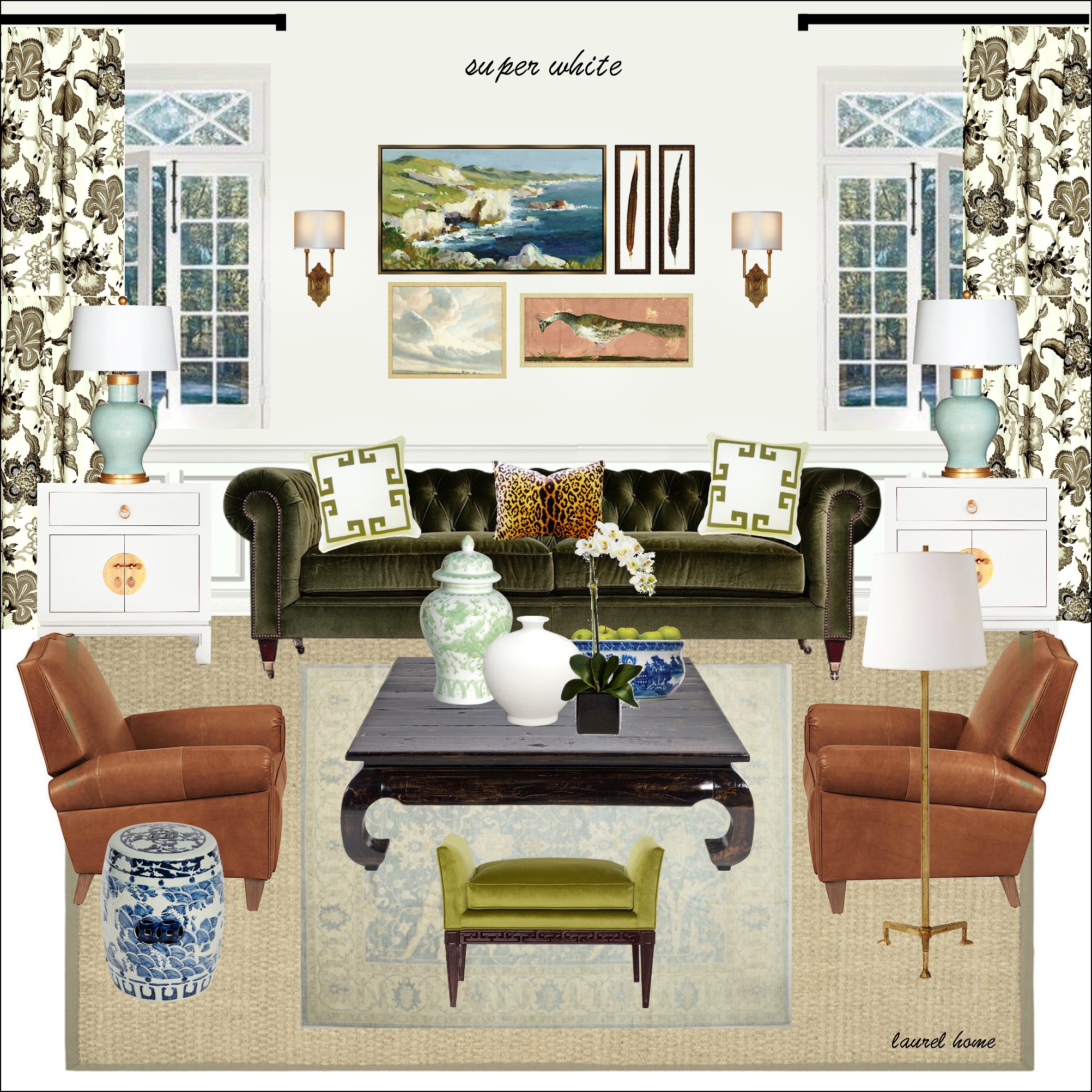
This was made about nine years ago. I can do a better job. Oh, I just noticed something. That is *my* garden stool that I have in my living room. I didn’t remember that I used the exact one.
Okay, before I share the video, below are some fairly high-res images you can take screenshots of.
Below is the floor plan with the furnishings.
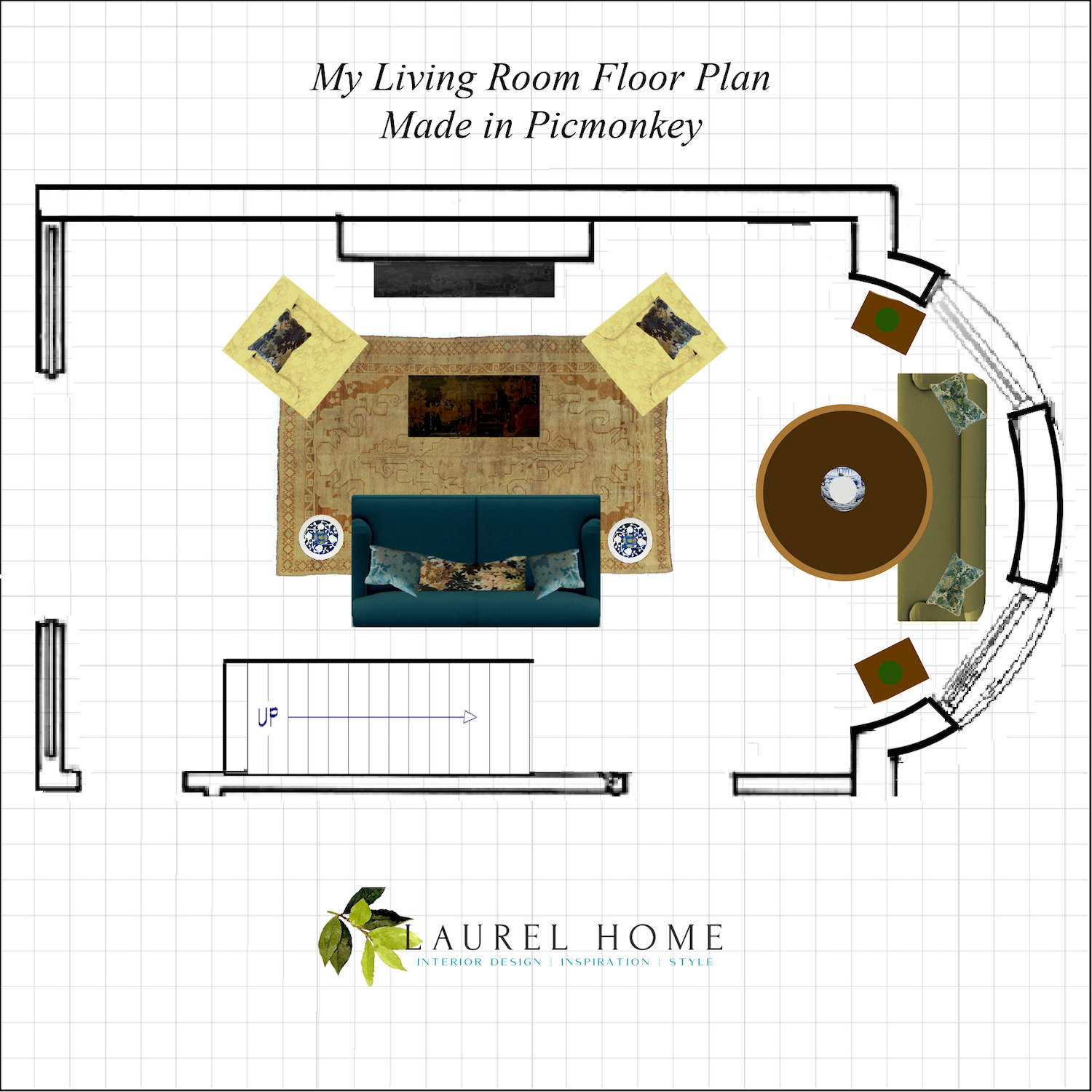
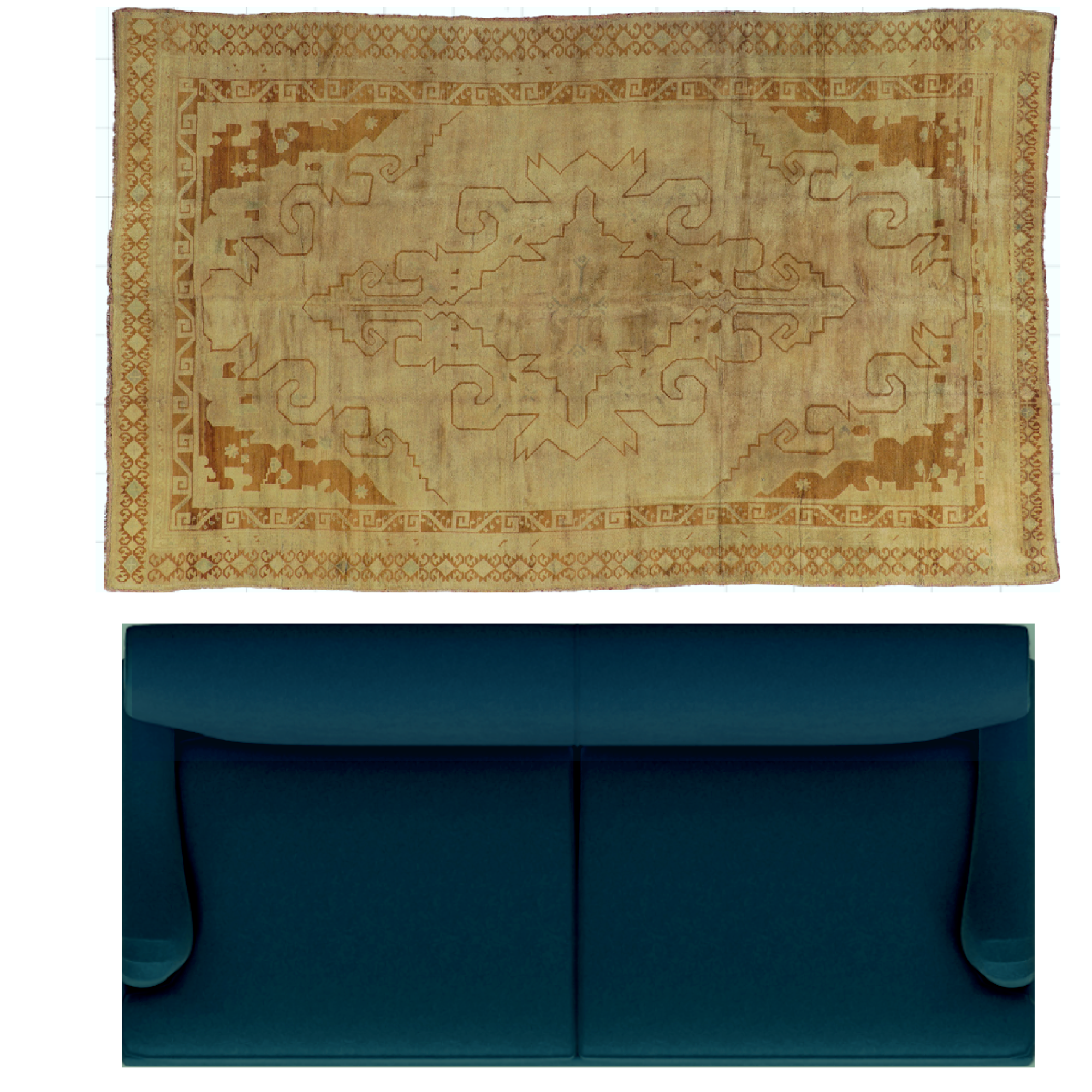
And below are the larger images you can right-click and save to your computer. To get each individual item off each board, you can make duplicates of each board and crop out each item individually.
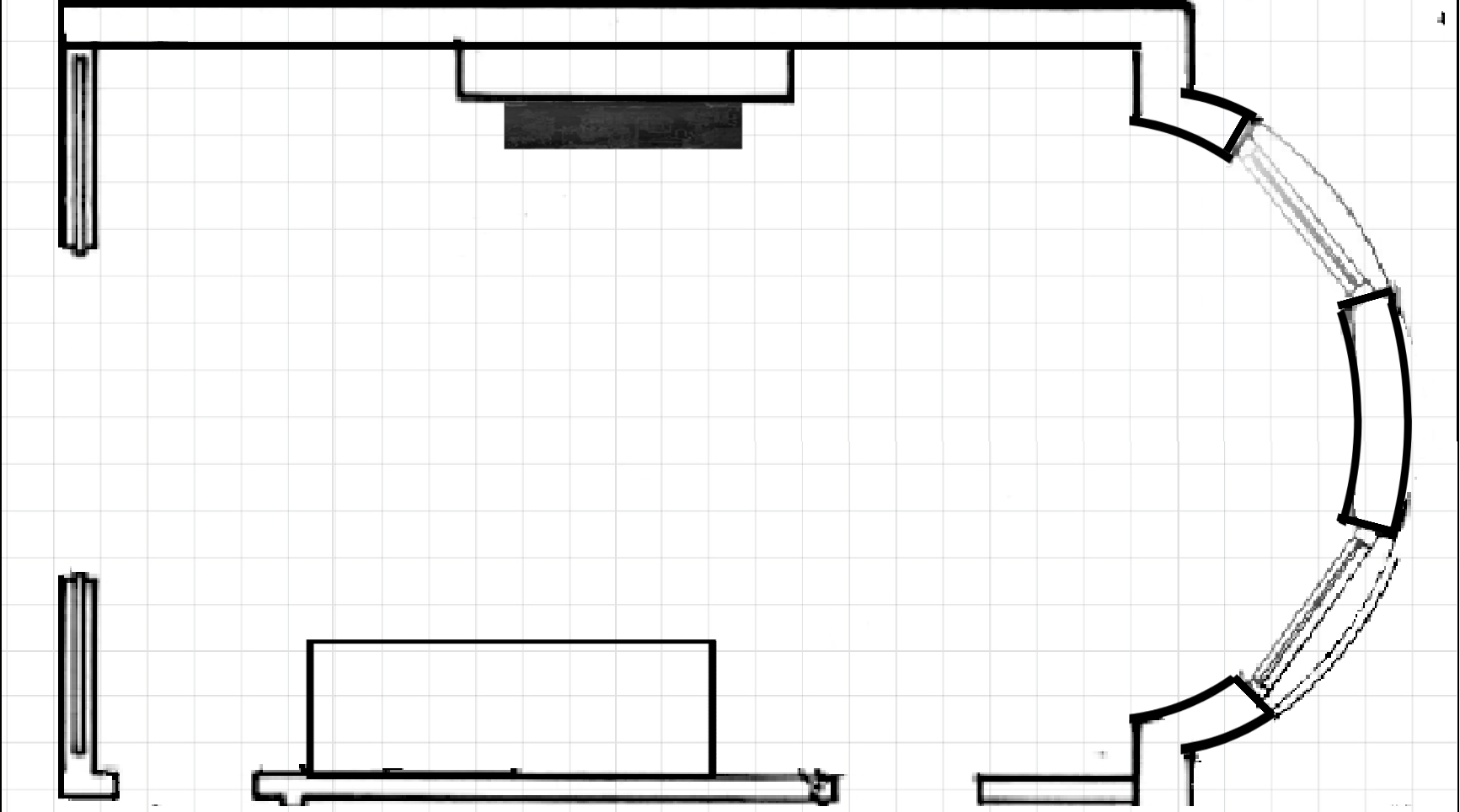
The beauty of using the graph paper is that one square always = one square foot, so it’s easy to scale the furnishings.
Please right-click to save each image. These were all added to boards on Picmonkey, instead of being uploaded separately.
Next is a yellow chair plus other furnishings.
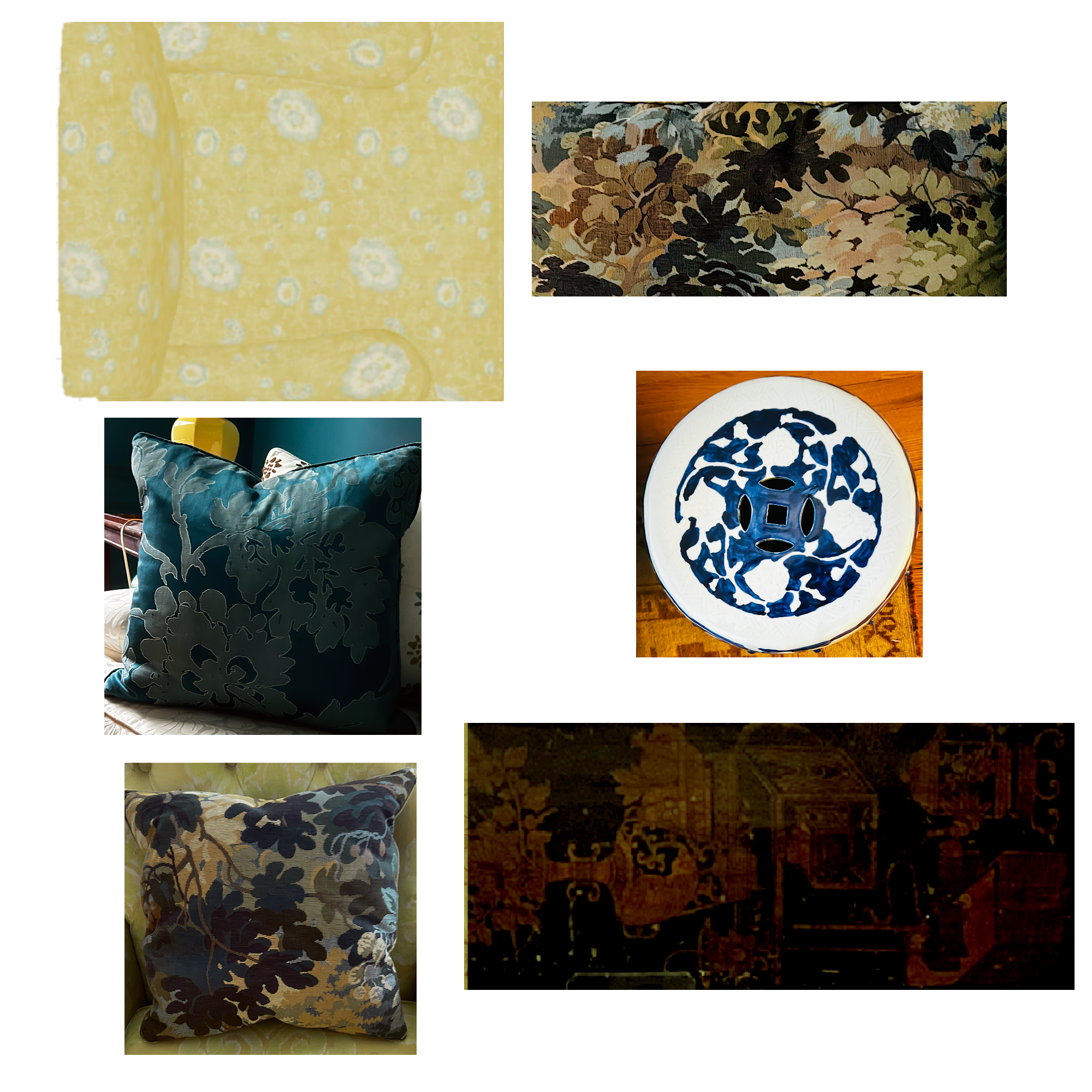
The pillows need some adjusting and correction under the exposure setting on the left sidebar.
Below, I changed the teal sofa into the olive green settee. It is seven feet long, like the sofa, but not nearly as deep.
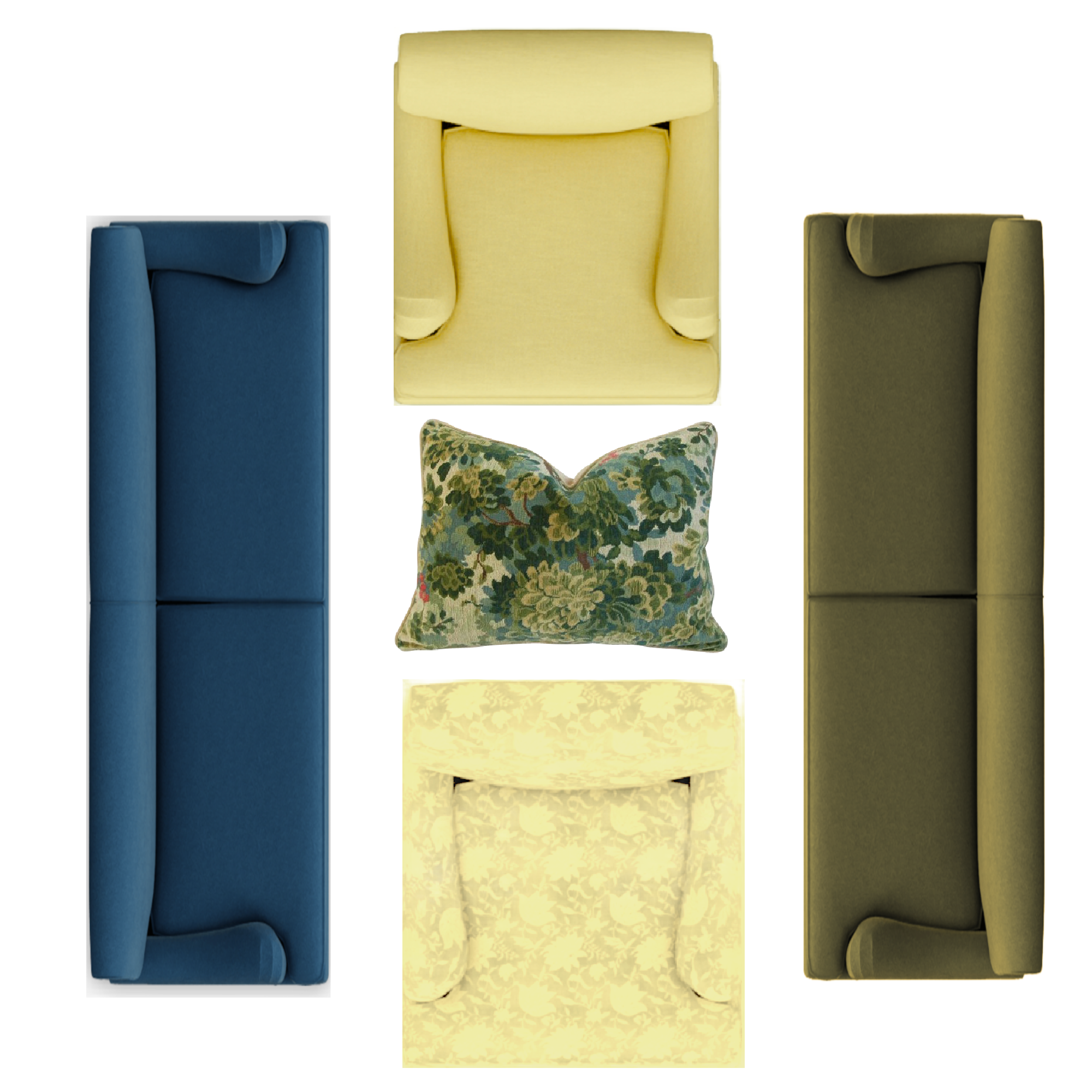
Below are some chairs if you’d like to practice changing colors on Picmonkey.
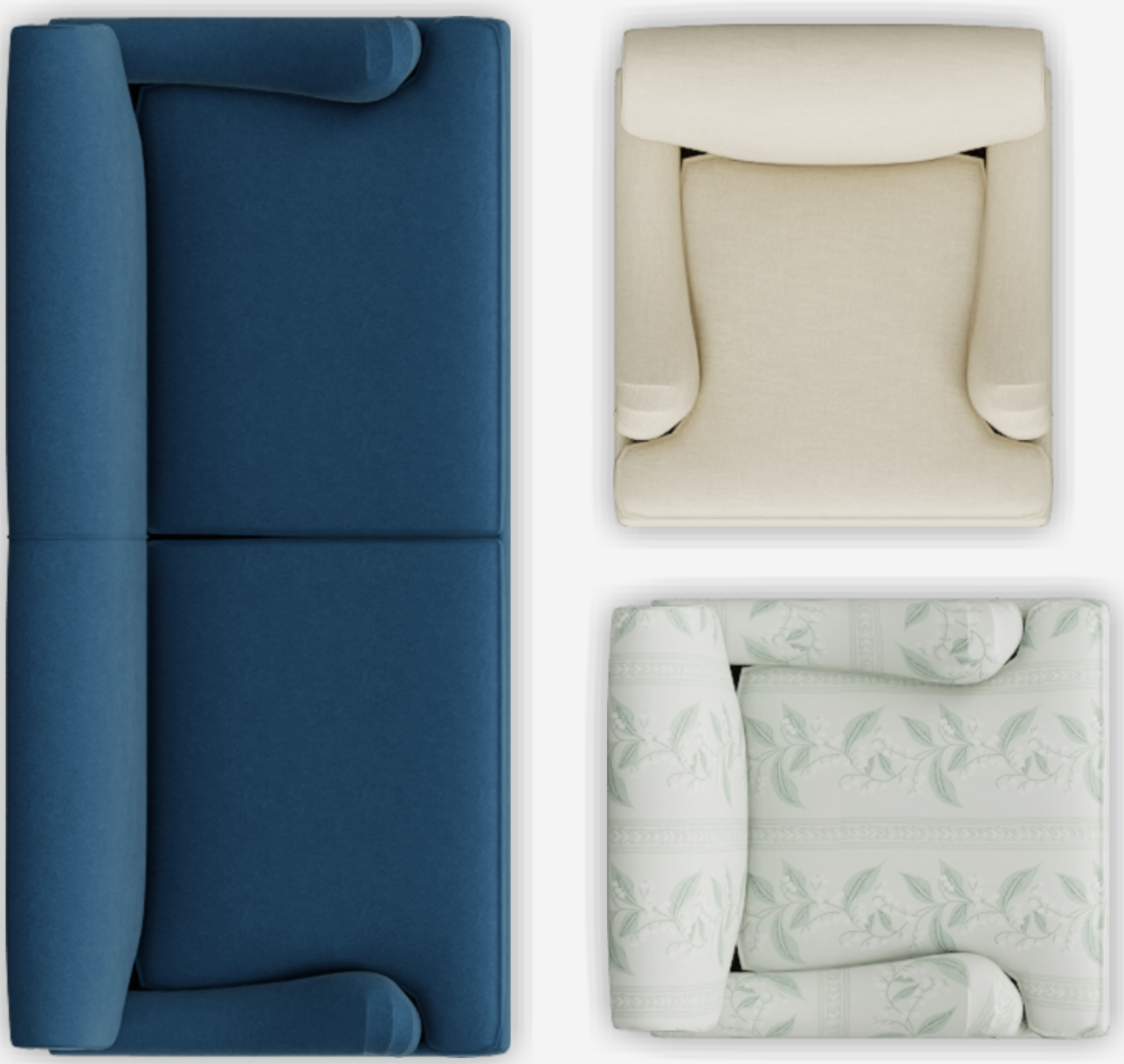
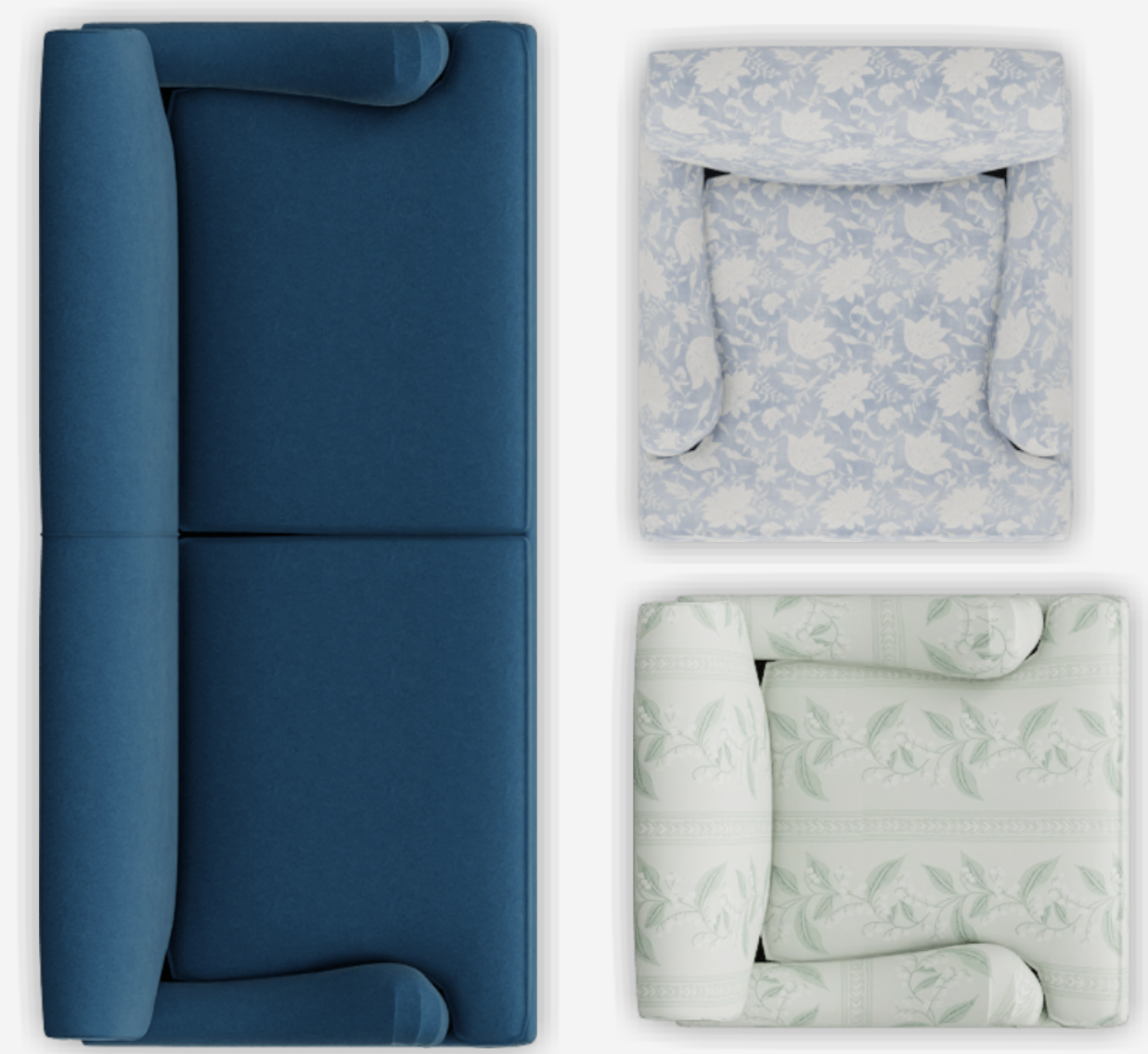
Below is the video sharing how I created the floor plan in Picmonkey.
I hope you have enjoyed this Picmonkey Tutorial!
Please let me know if anything isn’t clear. Also know that there’s usually more than one way to do things. I try to show only one or two ways at the most because I feel it helps cut down on the noise and confusion.
Ack! We’re bracing for another storm!
xo,
***Please check out the recently updated HOT SALES
***Also, if you’re doing some shopping on Amazon, please click this Amazon affiliate link or the graphic below.

Thank you so much!
I very much appreciate your help and support!
Related Posts
 The 15 Most Beautiful Blog Posts on Laurel Home
 The Ugly Truth Behind The Pretty Interiors On Houzz
 Come See The Gracie Panels For Real – Parts 1 & 2
 The 21 Funniest Laurel Home Blog Posts
 One Living Room Layout – Seven Different Ways!
 Her Bossy Home Builder Needs To Calm Down!
 How to Fix Dreary Decorating + A Mistake I Made!